How do I add a YouTube video?
In Livesignage, you can easily embed YouTube videos into your playlists using dedicated video templates.
Step 1 – Open your playlist
Go to the Playlists section and either:
- Click + Create new playlist, then select the desired format or
- Open an existing playlist from the list
- Click Add Slide
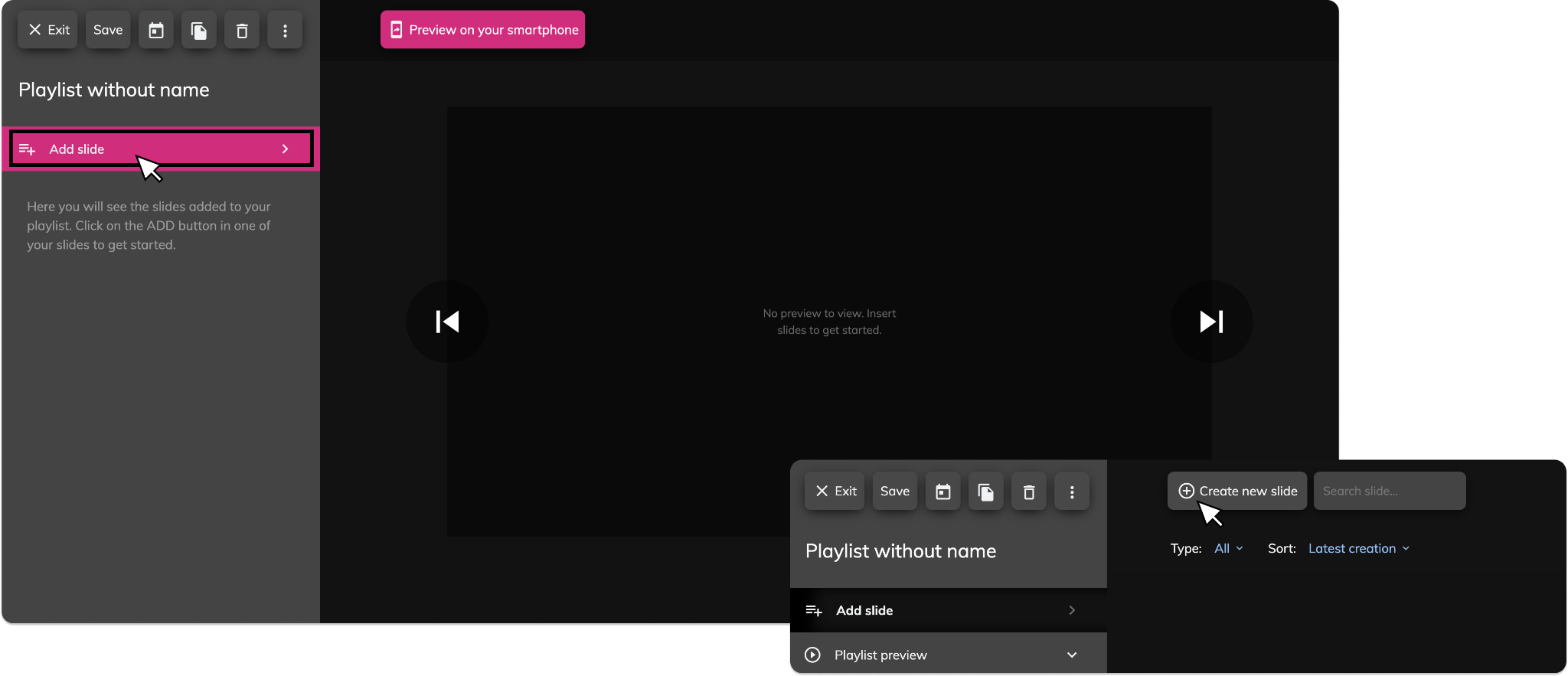
Step 2 – Select a YouTube template
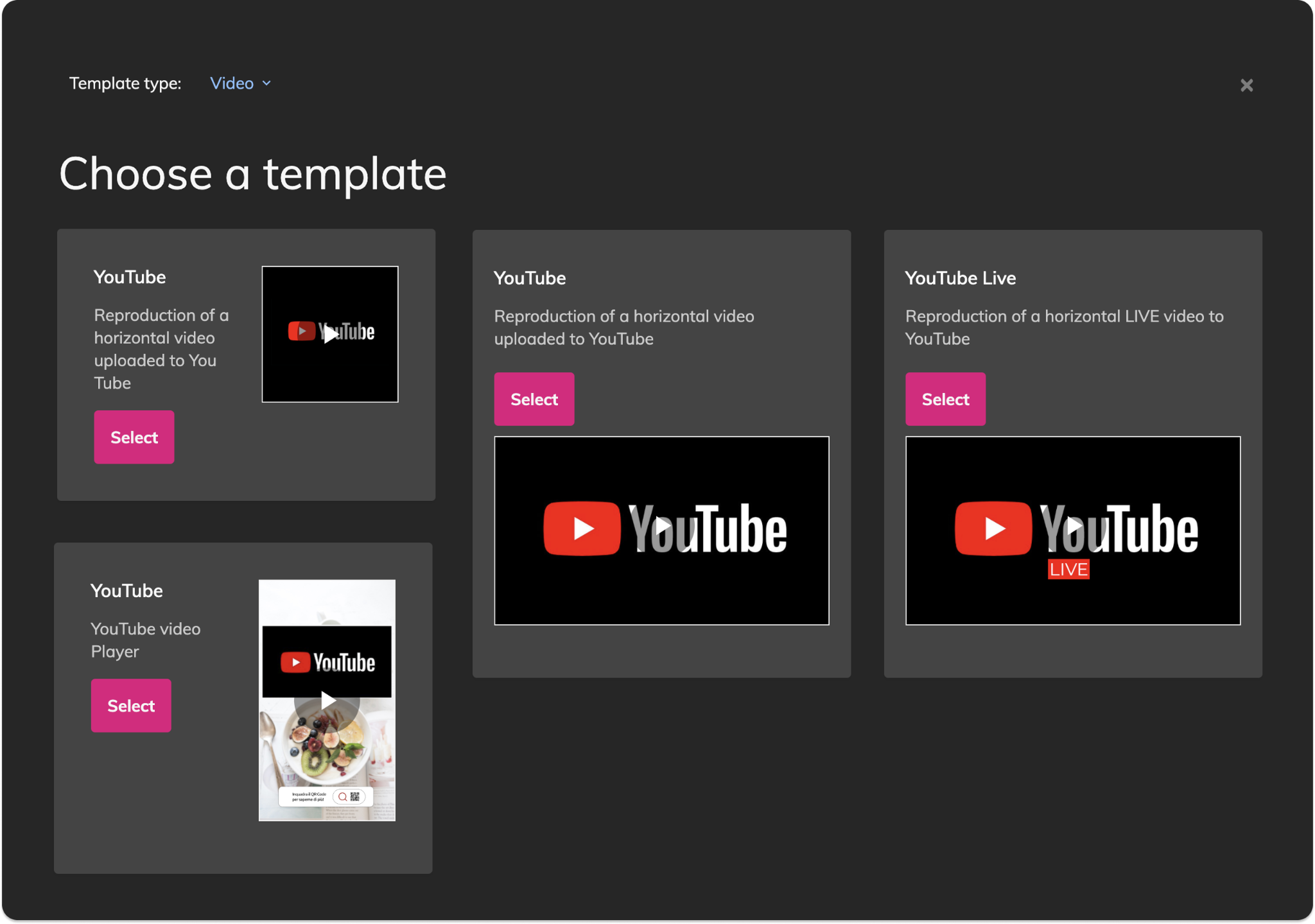
In the Template selector:
- Use the Template type dropdown at the top
- Select Video
You’ll now see templates like:
- YouTube
- YouTube Live
Click Select to proceed.
YouTube templates are available in all formats: horizontal, vertical, and square. The choice will depend when creating the Playlist.
– In vertical format, the video is shown in horizontal mode, centered with a background image
– In square format, the sides of the video will be cropped
Step 3 – Insert video details
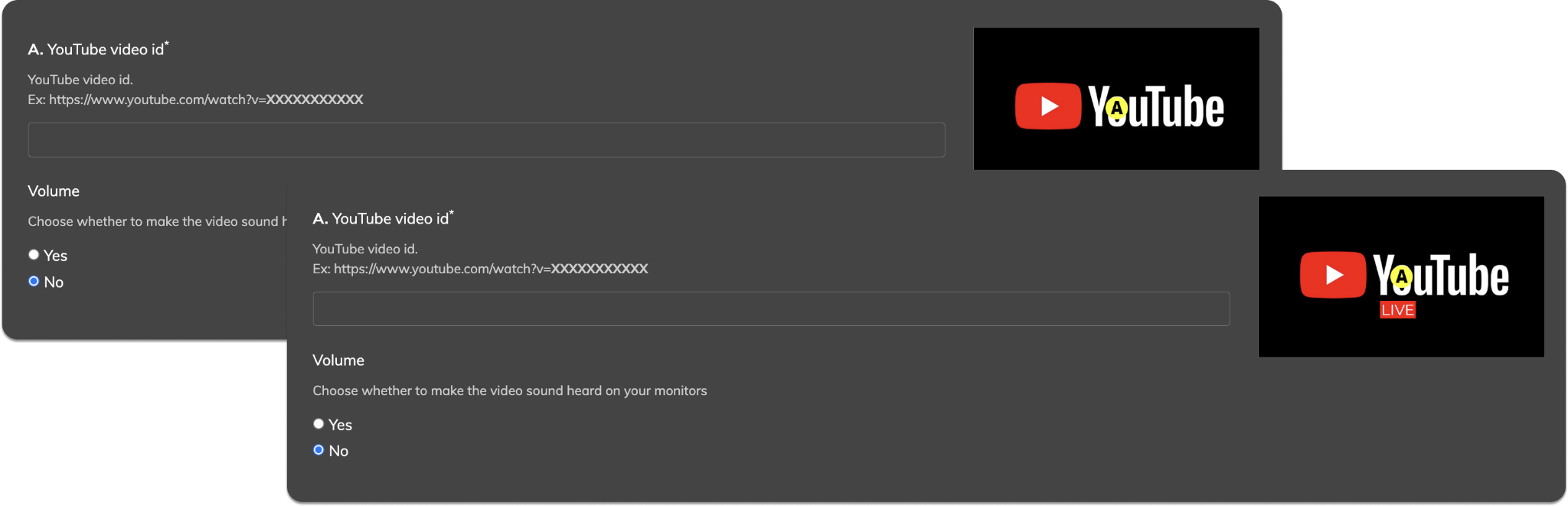
Each YouTube template requires a Video ID.
To find it:
- Copy the ID from the YouTube video URL
For example:
https://www.youtube.com/watch?v=XXXXXXX
→ Enter only XXXXXXX into the field
Then:
- Choose whether the audio should be active on the display (Yes/No)
- Click Save to confirm and add the slide
Useful tips
- The duration of the slide will automatically match the video length
- No ads will be shown on the display
- You can embed any YouTube video, no account linking is required